Quiz MO-101: Microsoft Word Expert (Word and Word 2019)
Quiz
Case Study
Exhibit.
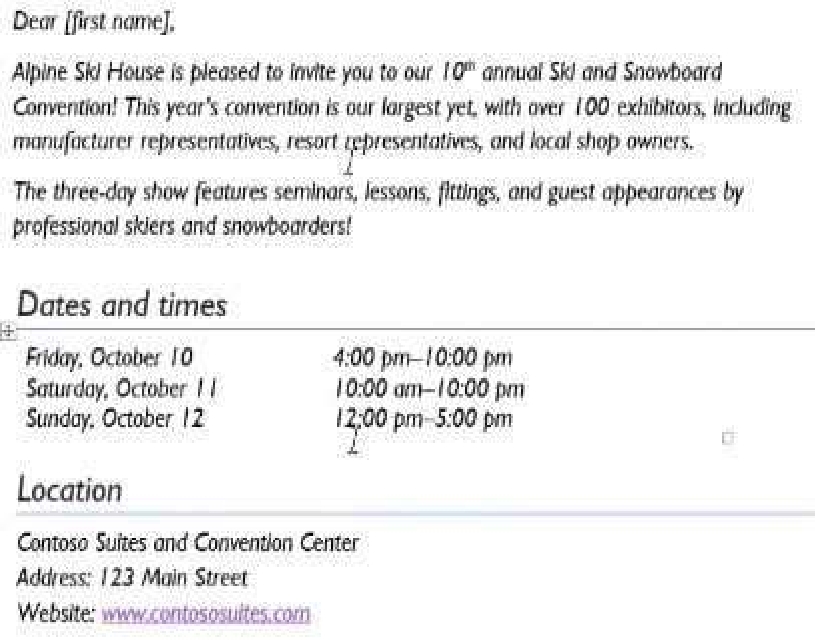



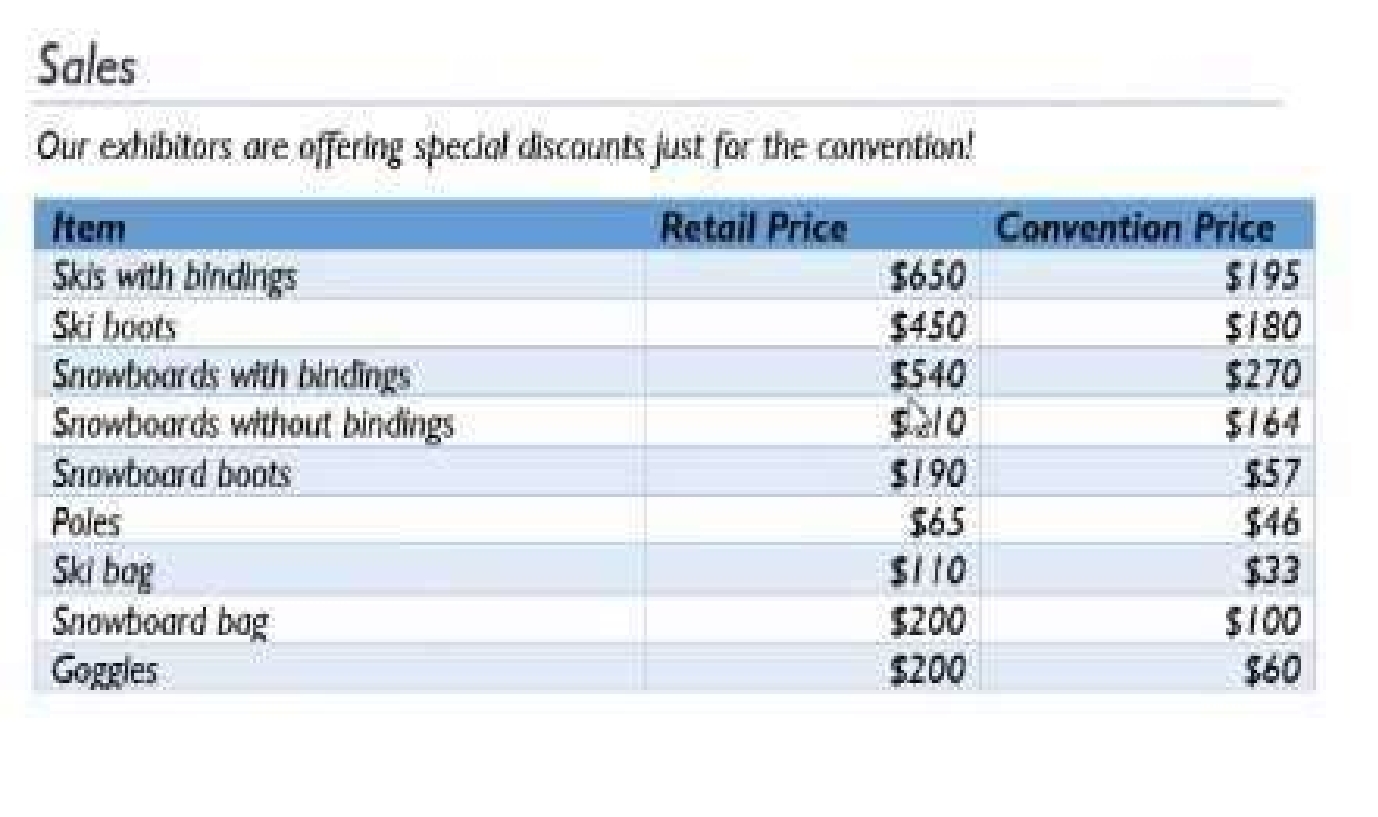
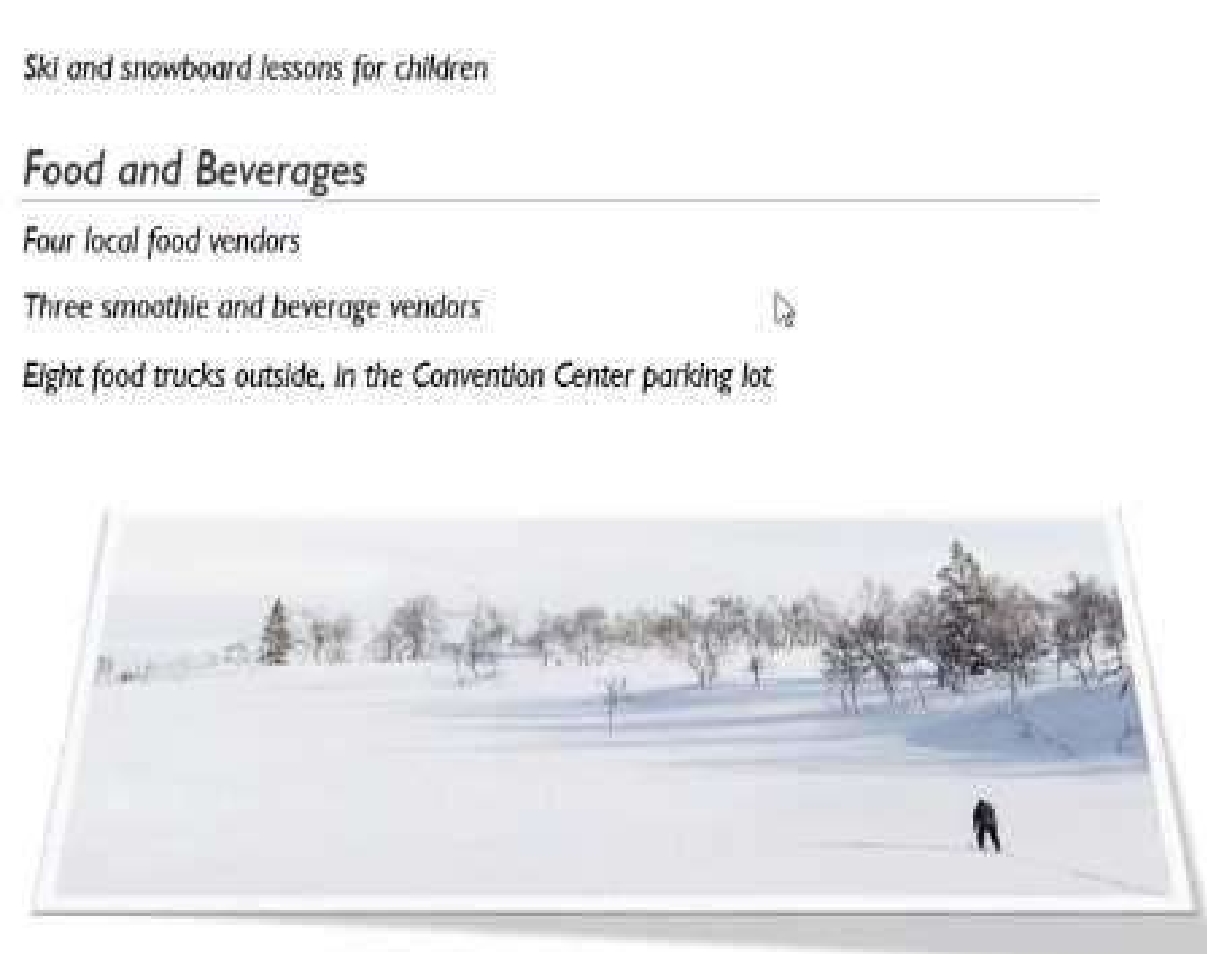
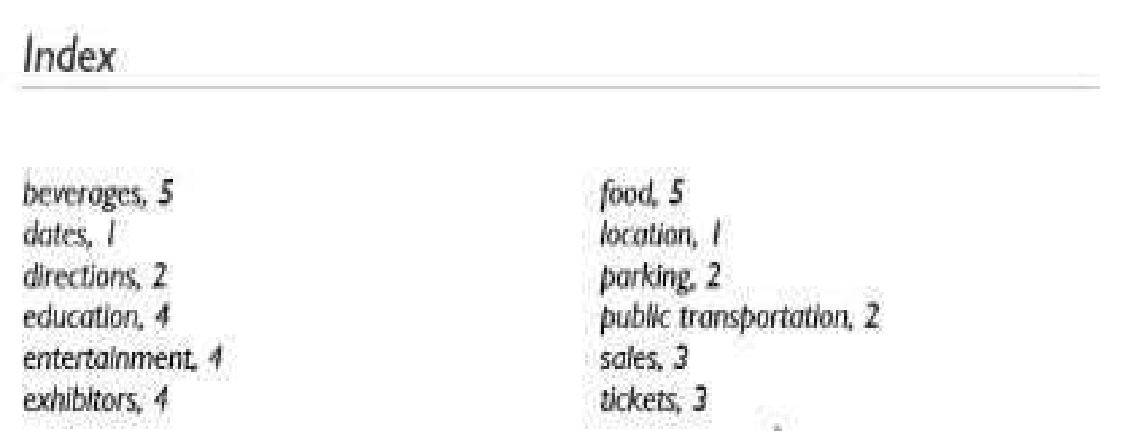
Copy only the Title style from the AlpineStyle template in the Documents folder into the current
document Overwrite the existing style to change the appearance of the document title.
Note: Copy the style the template to the document. Do not attach the template to the documents.
Open the Styles pane.
Click the Manage Styles button.
Click Import/Export.
Select a style.
Click the Copy button.
The style is copied to the selected template or document.
Click Close.
Quiz
Case Study
Exhibit.
the References tab.
Quiz
Case Study
Exhibit.
Note: Modify the field property. Do not add another field.
Click the "Insert" tab.
From the "Header & Footer" group, click [Header] or [Footer].
From the drop-down menu, choose a Header or Footer style.
Return to the "Insert" tab.
From the "Text" group, click [Quick Parts] > Select "Field..."
Under "Field names," select "FileName."
In the "Field properties" section, select a format.
In the "Field options" section, check "Add path to filename." The file name will now appear in the
header or footer.
Quiz
Case Study
Exhibit.
name "Bento". Save the list in the default folder as "Snowboarders*. Leave the field structure of the
recipient list intact.
Click the Start Mail Merge button.
Select Step-by-Step Mail Merge Wizard.
The Mail Merge pane appears on the right, ready to walk you through the mail merge.
Select a type of document to create.
Click Next: Starting document.
Quiz
Case Study
Exhibit.

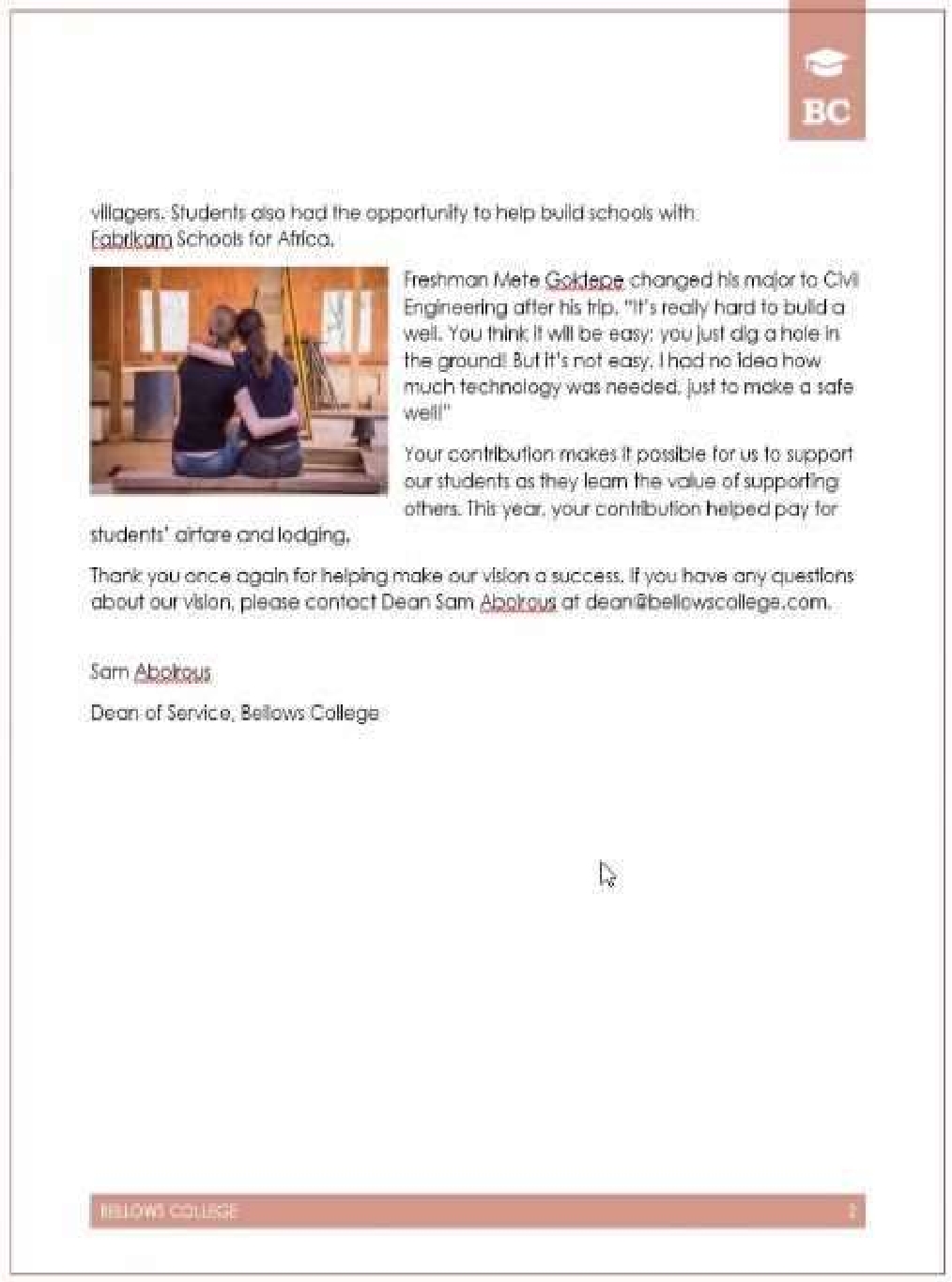
Use a Word feature to replace all nonbreaking spaces in the document with regular spaces.
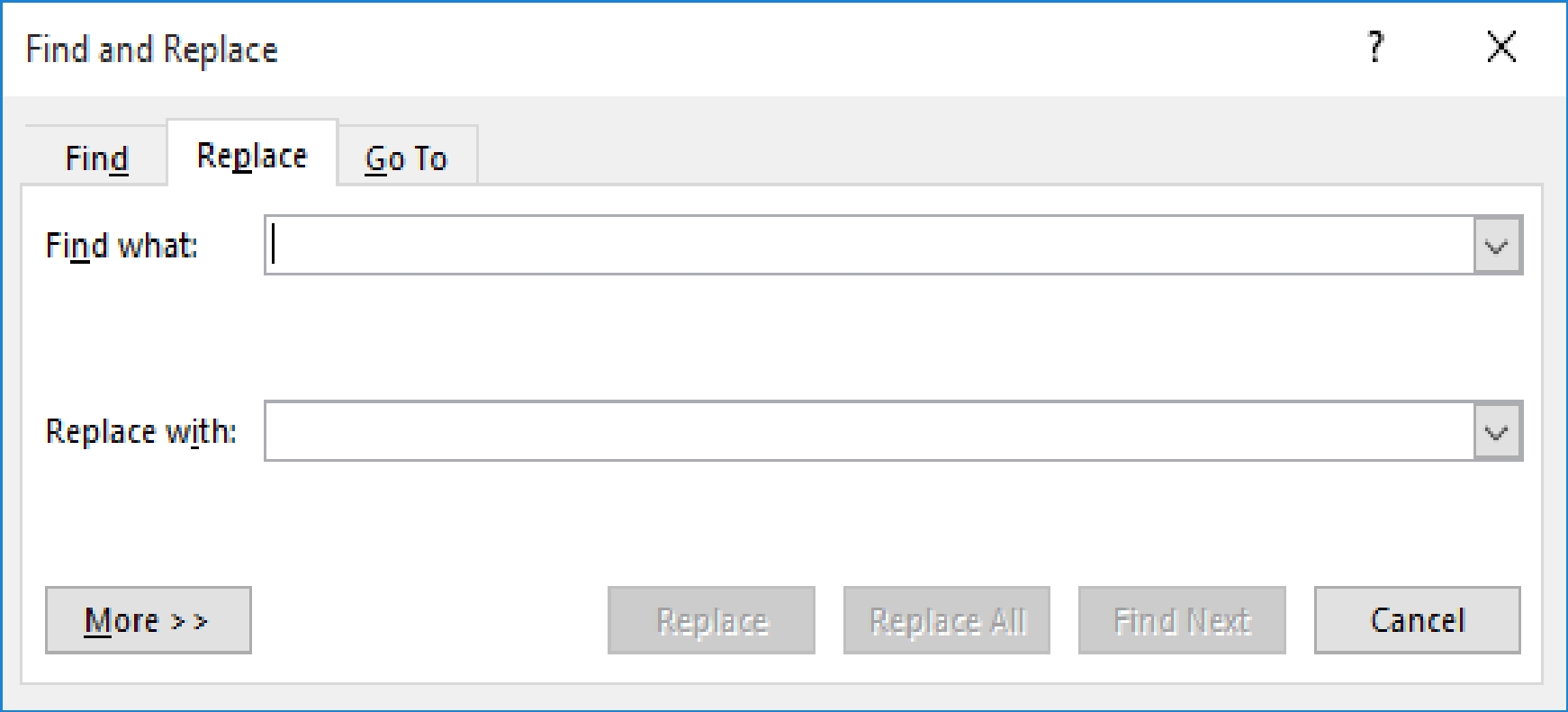
Figure 1. The Replace tab of the Find and Replace dialog box.
In the Find What box, enter "^-" (without the quote marks). That is a carat character (Shift+6)
followed by a dash.
In the Replace With box, enter "^s" (again, without the quote marks). That is a carat character
followed by a lowercase "s."
Click on Replace All.
Close the Find and Replace dialog box.
Quiz
Case Study
Exhibit.
pagination options so that all lines of the paragraph will always stay together on the same page.
split between two pages.
Select the lines that you want to keep together.
On the Format menu, click Paragraph, and then click the Line and Page Breaks tab.
Select the Keep lines together check box.
Quiz
Case Study
Exhibit.
Save the style set file in the default location.
Then click “Home”.
Next, click “Change Styles”.
On the drop-down menu, choose “Style Set” option.
Click “Save as Quick Style Set”
Now, the “Save as Quick Style Set” window will pop up. Type the file name in text box.
Click “Save”
Quiz
Case Study
Exhibit.
Note: Word automatically adds the text Figure 2.
On the References tab, in the Captions group, click Insert Caption.
In the Label list, select the label that best describes the object, such as a figure or equation.
Quiz
Case Study
Exhibit.
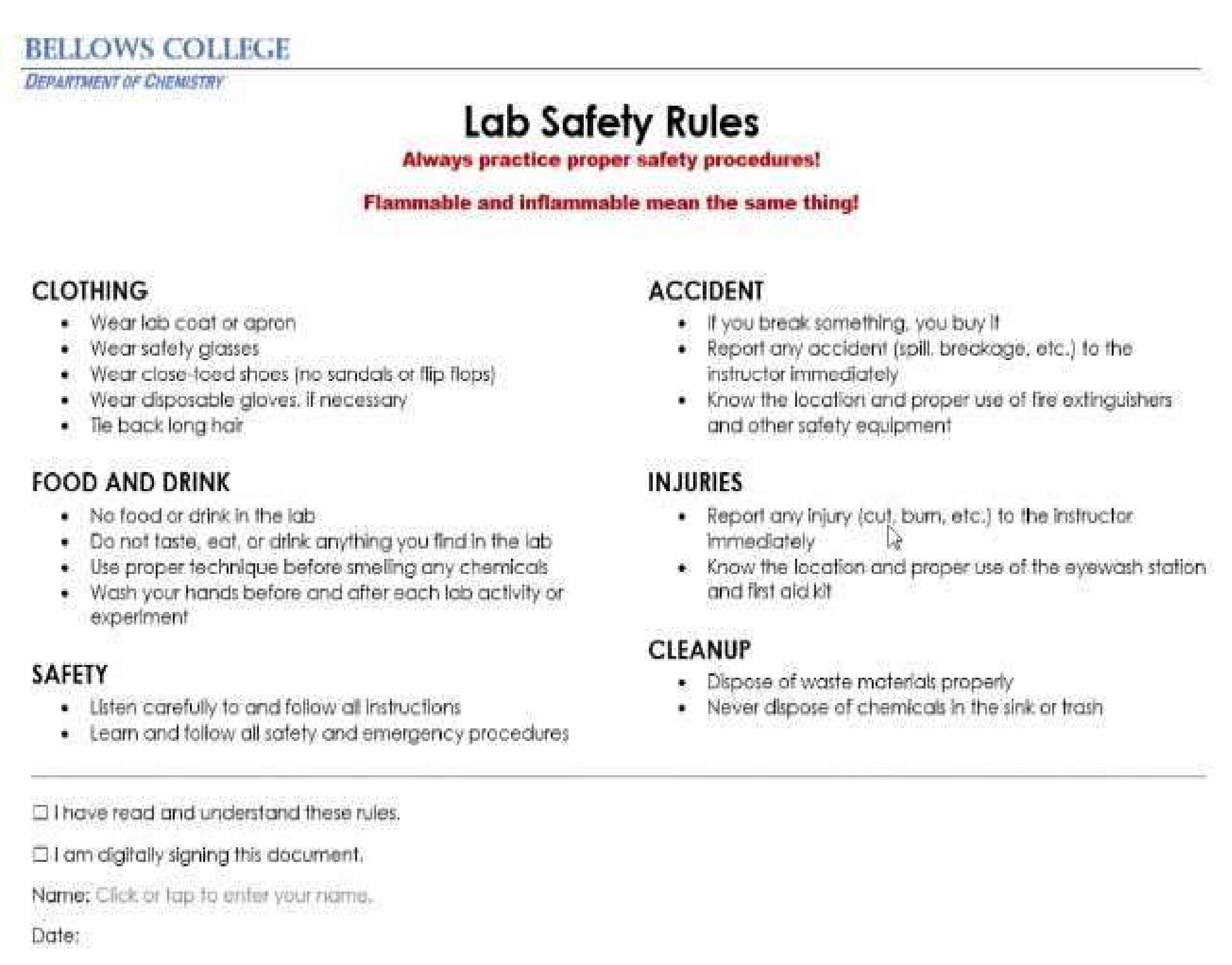
Select the "Bellows College' and 'Department of Chemistry" paragraphs. Save the selected text as a
Quick Part named Chemistry header. Save the Quick Part in the Bellows template, in a custom
category named 'Departments’'.
On the Insert tab, in the Text group, click Quick Parts, and then click Save Selection to Quick Part
Gallery, change the name and add a description if you like, and click OK.
Note: To save a selection as AutoText, on the Insert tab, in the Text group, click Quick
Parts > AutoText > Save Selection to AutoText Gallery.
Quiz
Case study
Exhibit.
Combine the current document with the DonaitionLetter2 document from the Documents folder.
Show the changes in the original document.
Do not accept or reject the tracked changes.
Note: Use Donationletter as the original document and DonationLelter2 as the revised document.
if they're short, or merge them if they're long.
Select the Insert tab.
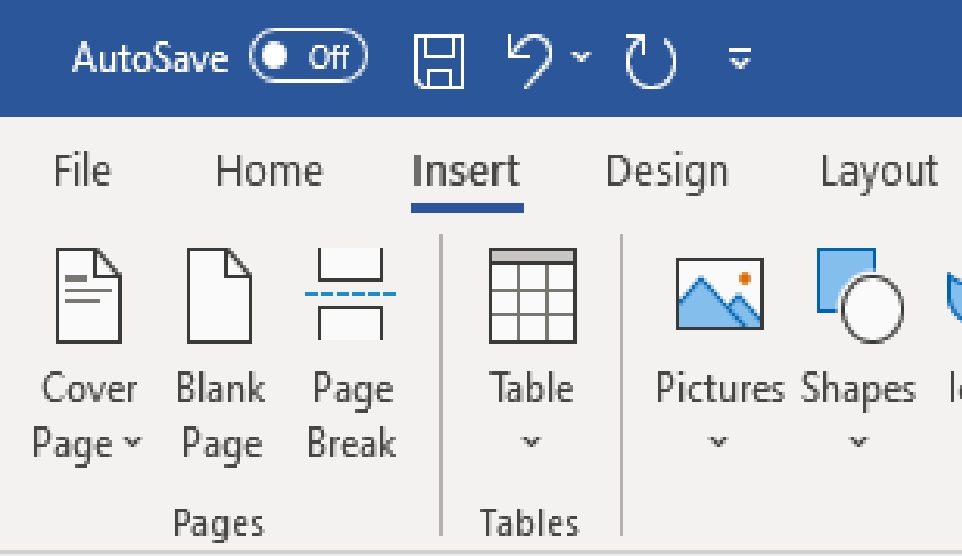
Select Object, and then select Text from File from the drop-down menu.
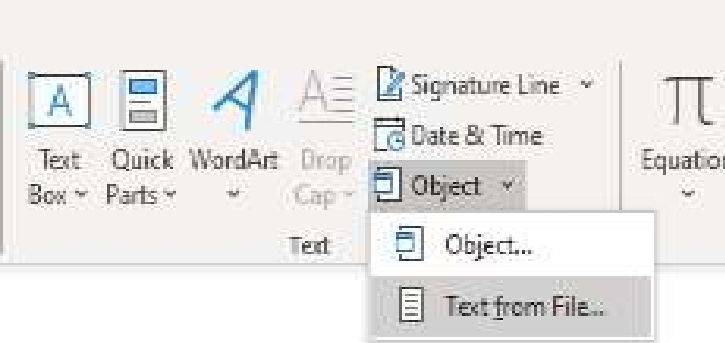
Select the files to be merged into the current document. Press and hold Ctrl to select more than one
document.
MO-101: Microsoft Word Expert (Word and Word 2019) Practice test unlocks all online simulator questions
Thank you for choosing the free version of the MO-101: Microsoft Word Expert (Word and Word 2019) practice test! Further deepen your knowledge on Microsoft Simulator; by unlocking the full version of our MO-101: Microsoft Word Expert (Word and Word 2019) Simulator you will be able to take tests with over 24 constantly updated questions and easily pass your exam. 98% of people pass the exam in the first attempt after preparing with our 24 questions.
BUY NOWWhat to expect from our MO-101: Microsoft Word Expert (Word and Word 2019) practice tests and how to prepare for any exam?
The MO-101: Microsoft Word Expert (Word and Word 2019) Simulator Practice Tests are part of the Microsoft Database and are the best way to prepare for any MO-101: Microsoft Word Expert (Word and Word 2019) exam. The MO-101: Microsoft Word Expert (Word and Word 2019) practice tests consist of 24 questions and are written by experts to help you and prepare you to pass the exam on the first attempt. The MO-101: Microsoft Word Expert (Word and Word 2019) database includes questions from previous and other exams, which means you will be able to practice simulating past and future questions. Preparation with MO-101: Microsoft Word Expert (Word and Word 2019) Simulator will also give you an idea of the time it will take to complete each section of the MO-101: Microsoft Word Expert (Word and Word 2019) practice test . It is important to note that the MO-101: Microsoft Word Expert (Word and Word 2019) Simulator does not replace the classic MO-101: Microsoft Word Expert (Word and Word 2019) study guides; however, the Simulator provides valuable insights into what to expect and how much work needs to be done to prepare for the MO-101: Microsoft Word Expert (Word and Word 2019) exam.
BUY NOWMO-101: Microsoft Word Expert (Word and Word 2019) Practice test therefore represents an excellent tool to prepare for the actual exam together with our Microsoft practice test . Our MO-101: Microsoft Word Expert (Word and Word 2019) Simulator will help you assess your level of preparation and understand your strengths and weaknesses. Below you can read all the quizzes you will find in our MO-101: Microsoft Word Expert (Word and Word 2019) Simulator and how our unique MO-101: Microsoft Word Expert (Word and Word 2019) Database made up of real questions:
Info quiz:
- Quiz name:MO-101: Microsoft Word Expert (Word and Word 2019)
- Total number of questions:24
- Number of questions for the test:50
- Pass score:80%
You can prepare for the MO-101: Microsoft Word Expert (Word and Word 2019) exams with our mobile app. It is very easy to use and even works offline in case of network failure, with all the functions you need to study and practice with our MO-101: Microsoft Word Expert (Word and Word 2019) Simulator.
Use our Mobile App, available for both Android and iOS devices, with our MO-101: Microsoft Word Expert (Word and Word 2019) Simulator . You can use it anywhere and always remember that our mobile app is free and available on all stores.
Our Mobile App contains all MO-101: Microsoft Word Expert (Word and Word 2019) practice tests which consist of 24 questions and also provide study material to pass the final MO-101: Microsoft Word Expert (Word and Word 2019) exam with guaranteed success. Our MO-101: Microsoft Word Expert (Word and Word 2019) database contain hundreds of questions and Microsoft Tests related to MO-101: Microsoft Word Expert (Word and Word 2019) Exam. This way you can practice anywhere you want, even offline without the internet.
BUY NOW