Quiz MO-201: Microsoft Excel Expert (Excel and Excel 2019)
Quiz
Instructions
Exam Environment
Exam Interface and Controls
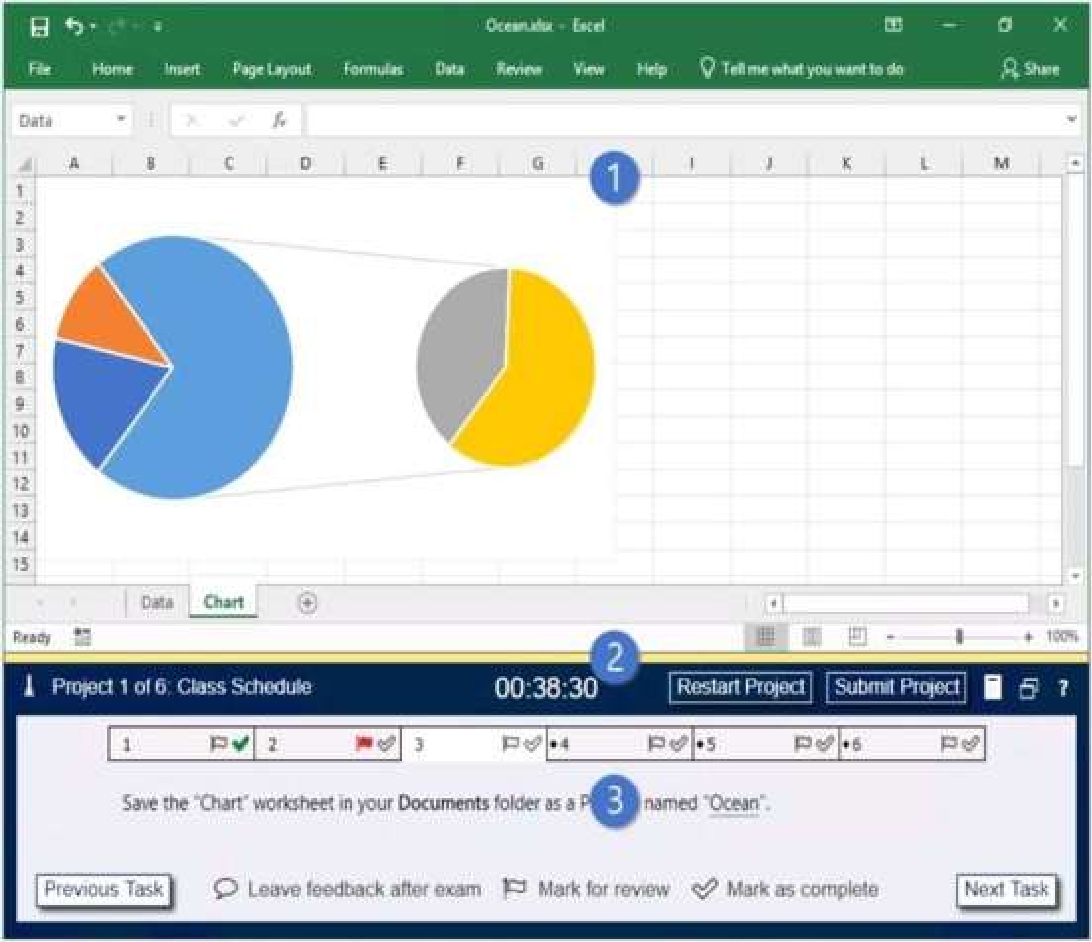
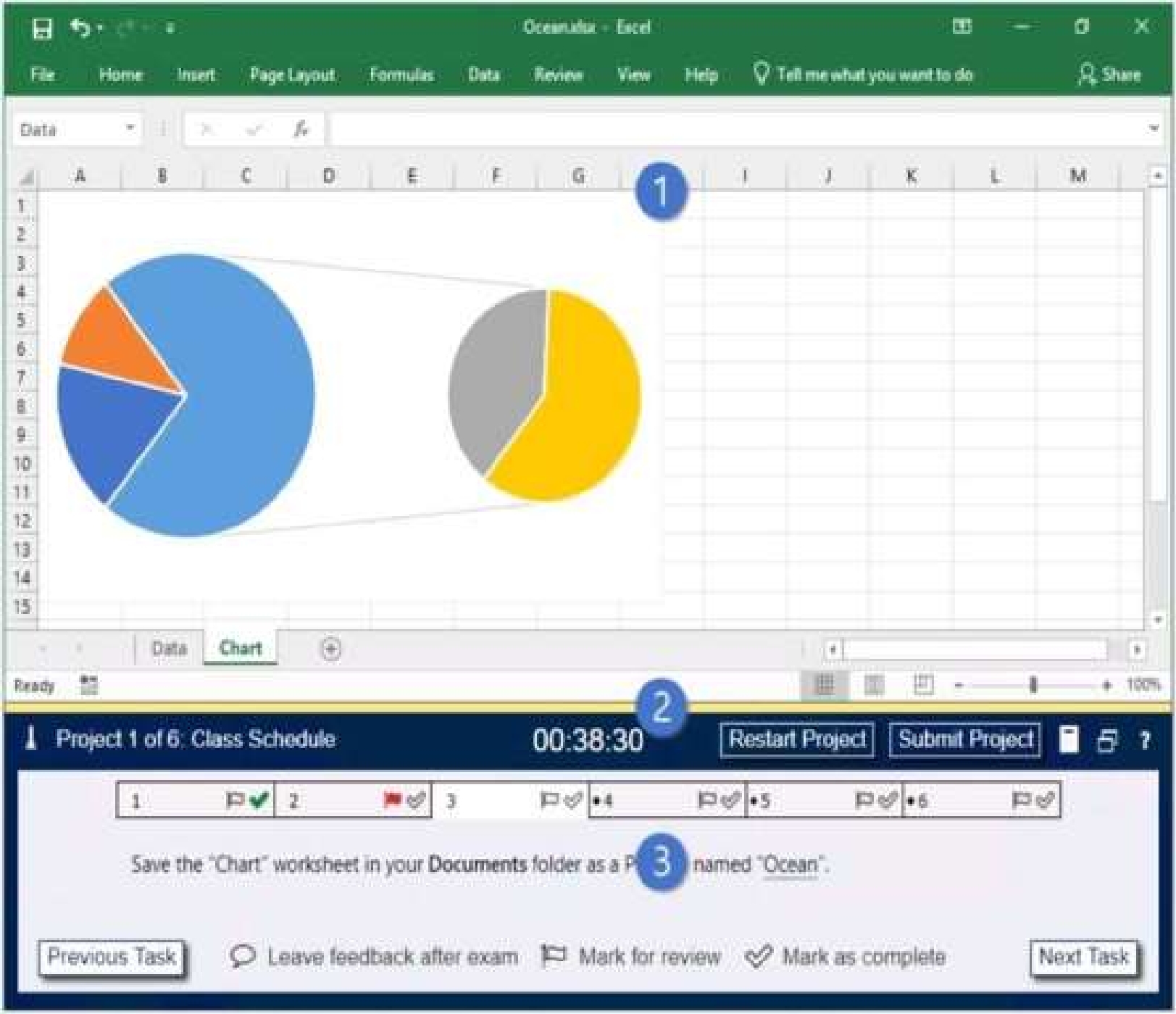
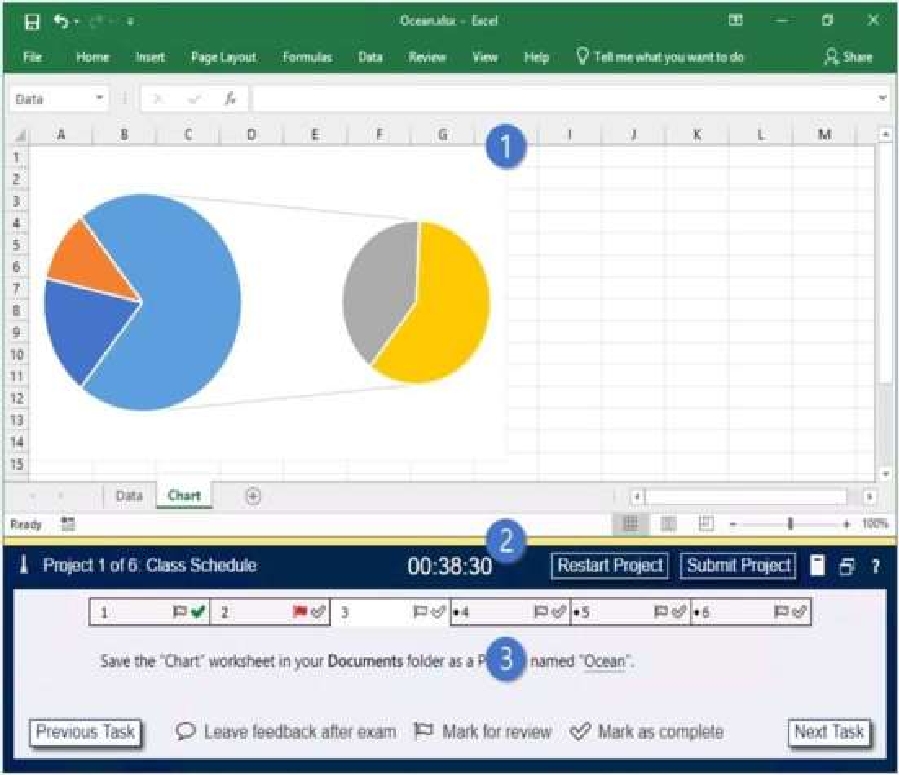
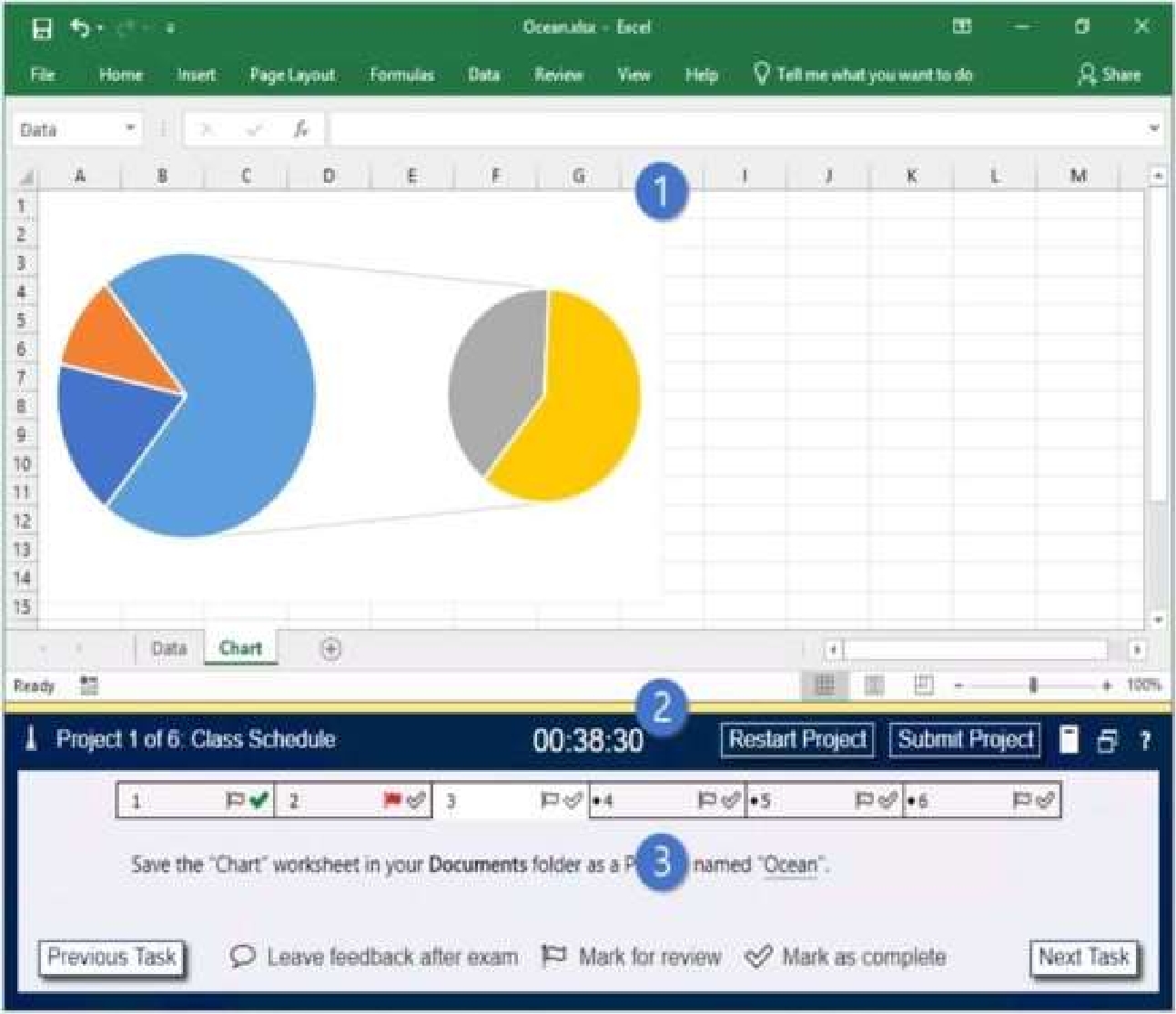
The exam panel provides access to the project task(s). Each project has an associated file in which
you will perform the project tasks.
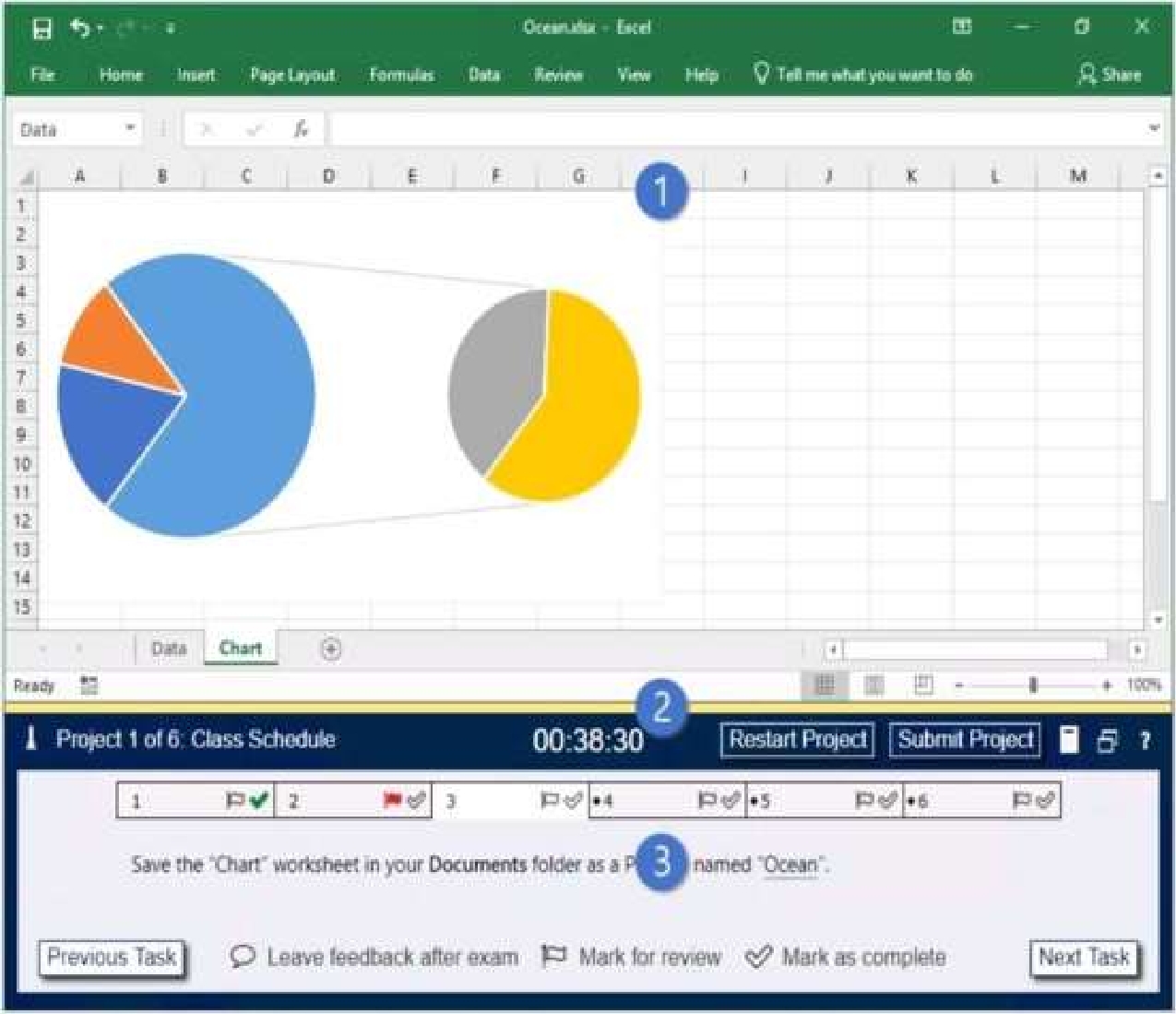
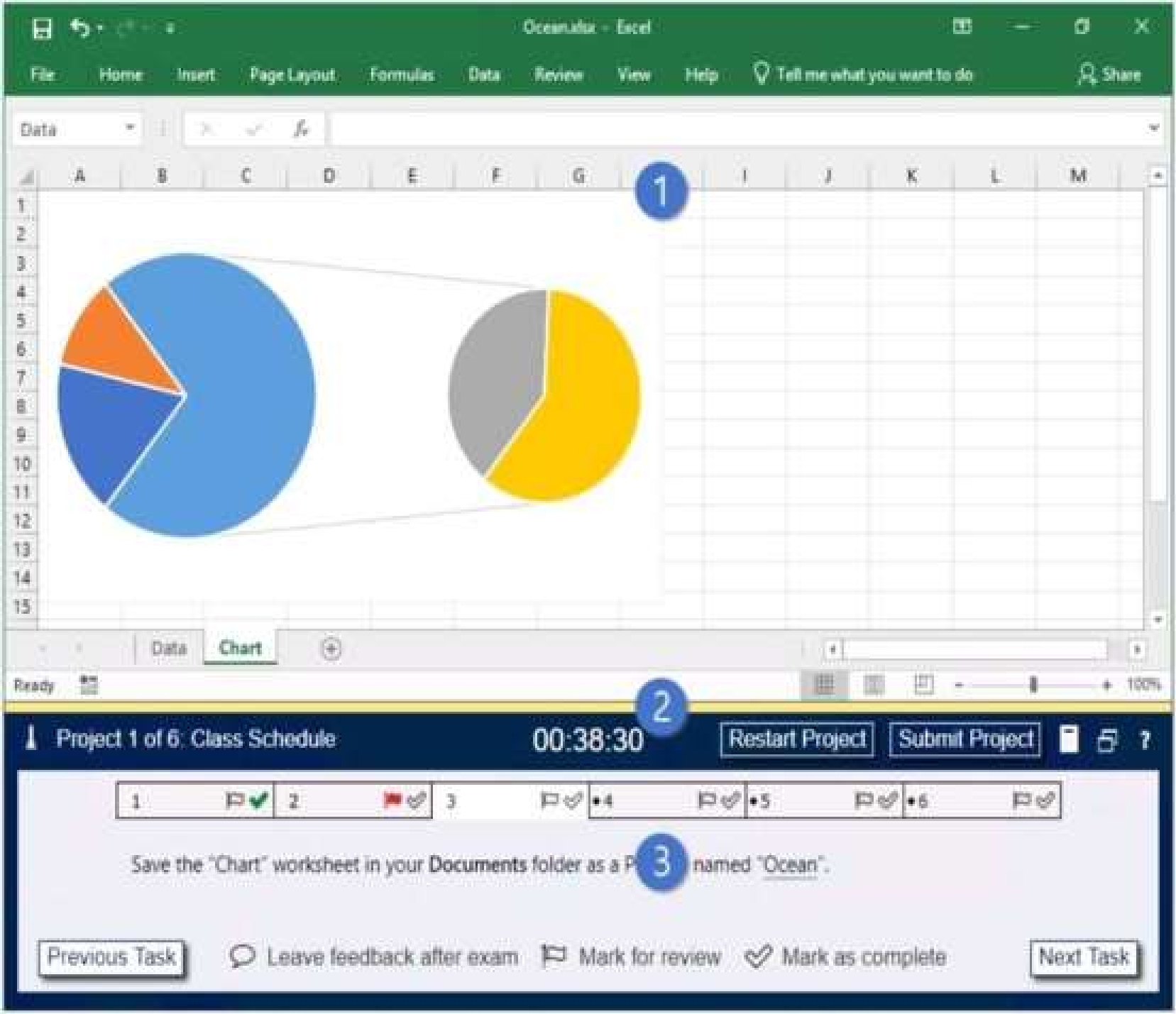
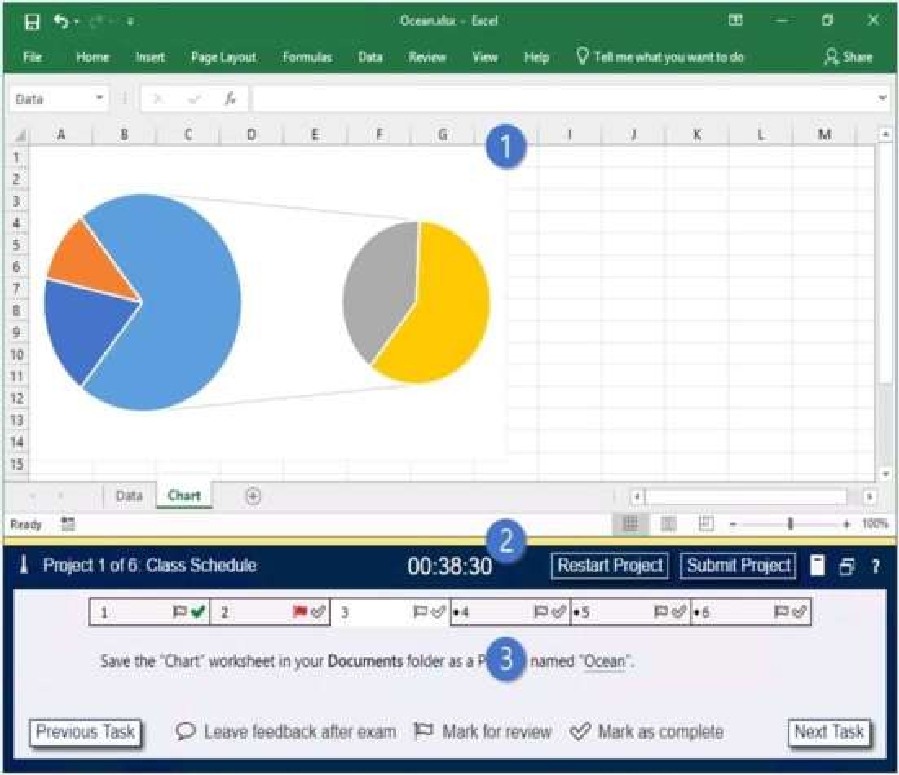
1. Project file
2. Split bar
3. Exam panel
You can modify the exam interface to fit your needs in the following ways:
To increase or decrease the exam panel font size, press Ctrl+Plus or Ctrl+Minus.
To change the height of the exam panel, drag the split bar between the project file and the exam
panel.
To minimize the exam panel, click the Collapse Panel arrow • in the upper-left corner of the exam
panel. The minimized exam panel displays the Expand Panel button, the project number and name,
the remaining time, and the Restart Project and Submit Project buttons. To move between tasks, you
must expand the exam panel.
To restore the interface to the default appearance, click the Restore button near the upper-right
corner of the exam panel.
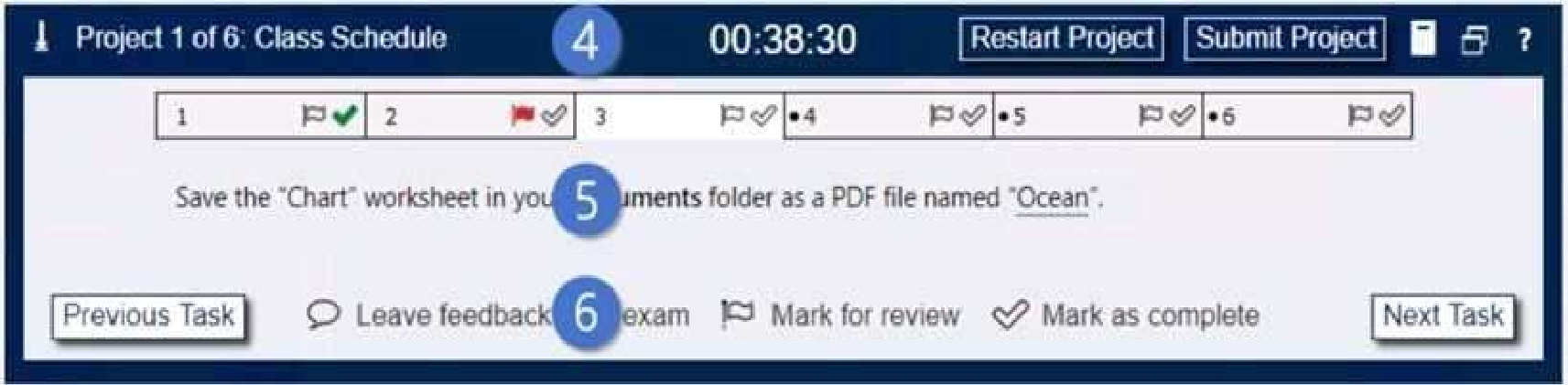
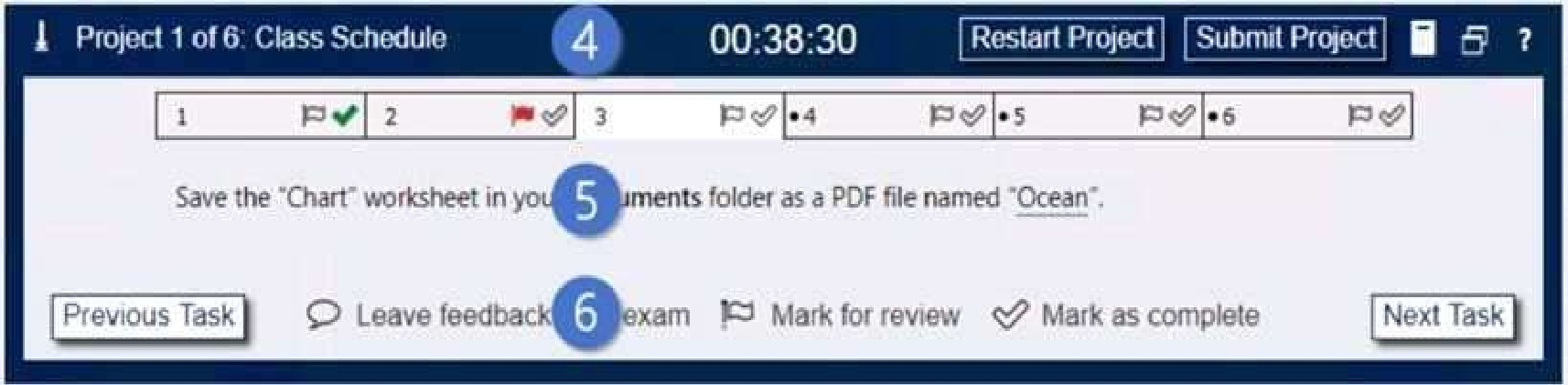
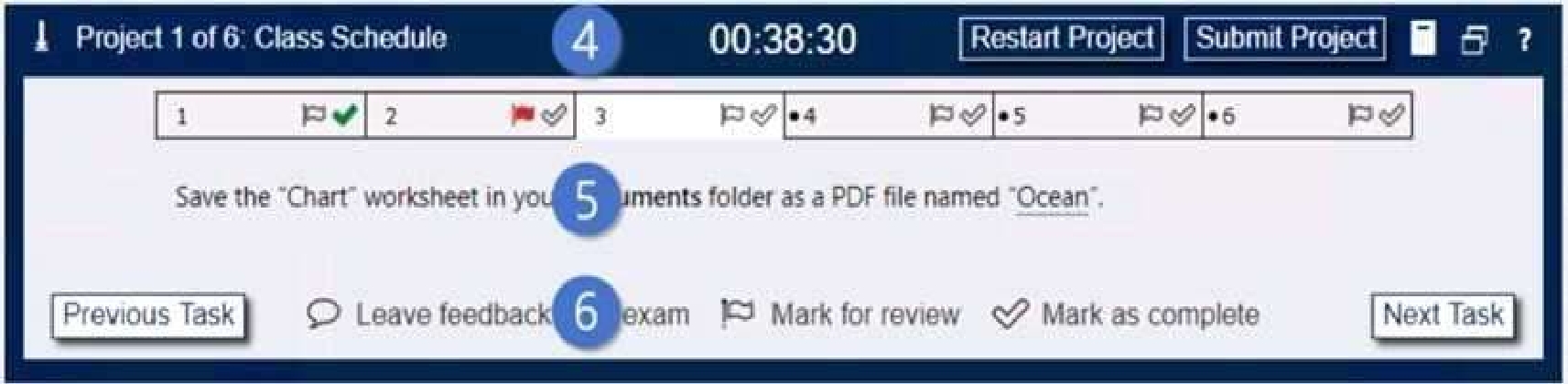
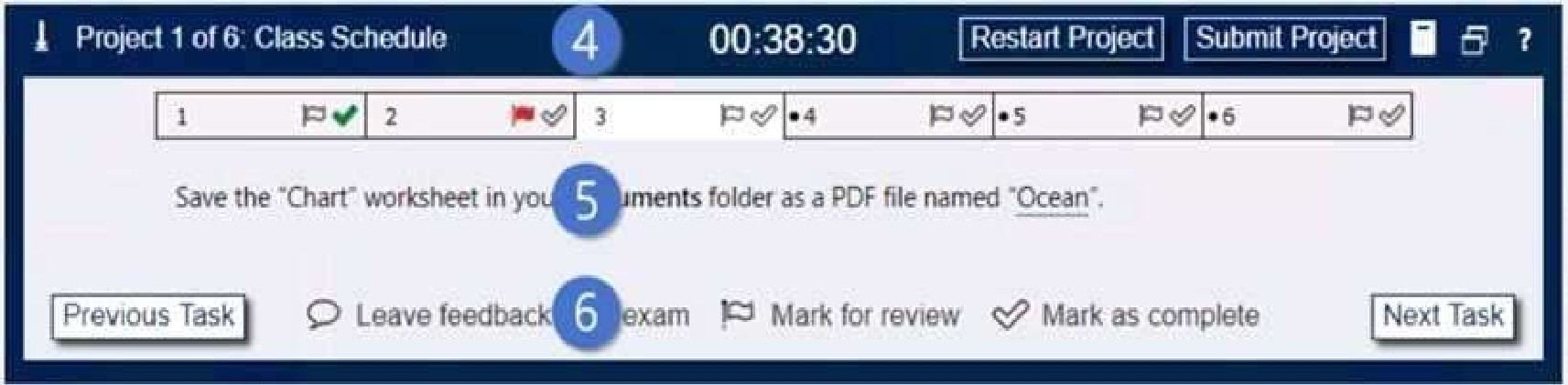
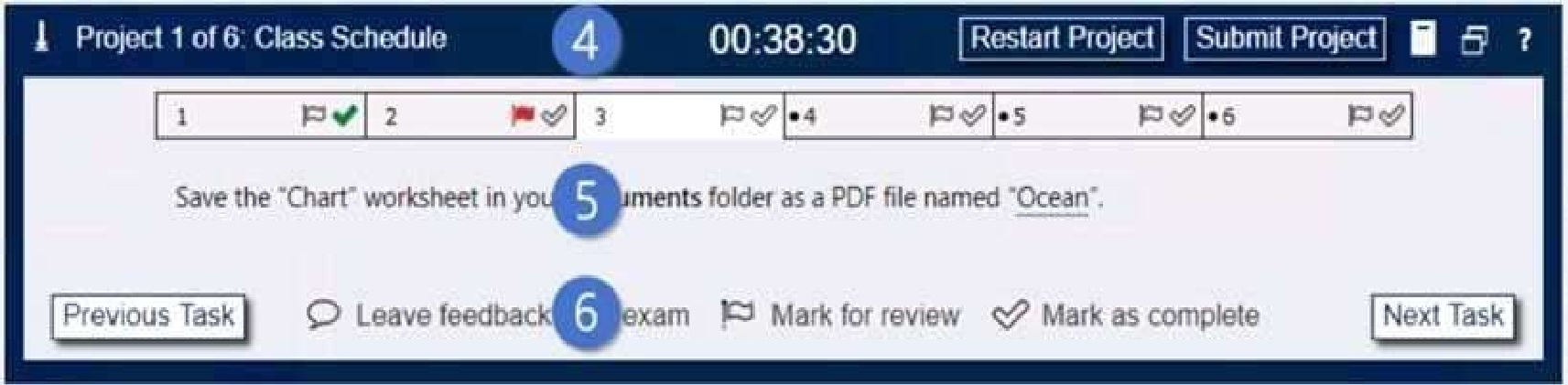
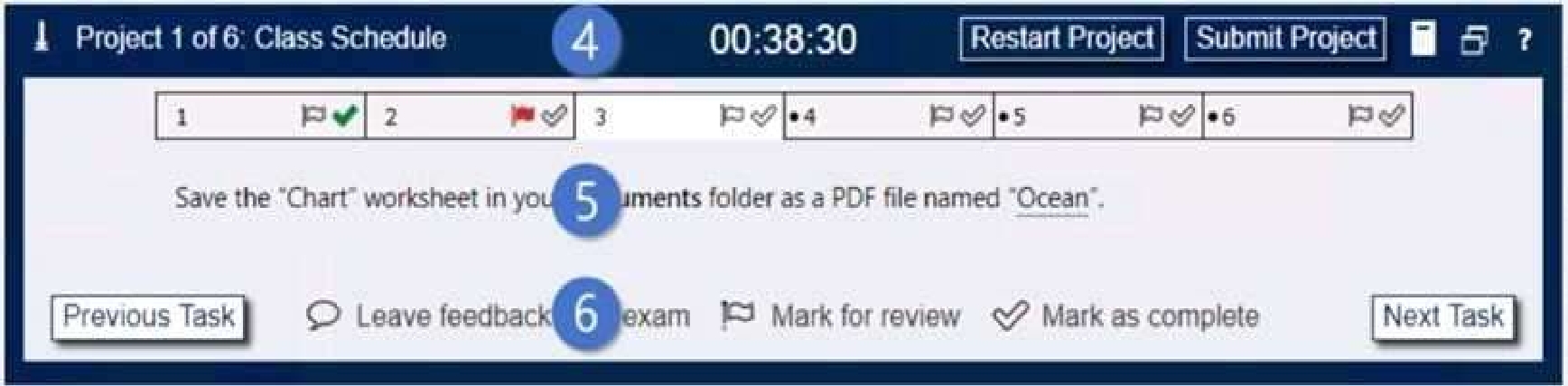
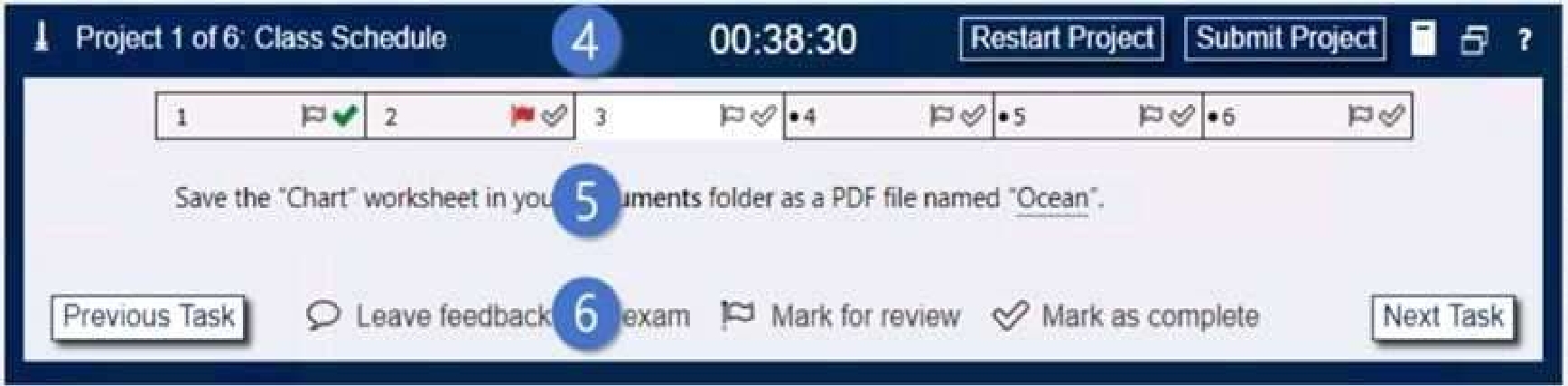
4. The Information bar at the top of the exam panel displays the current project and total number of
projects, the remaining exam time, and the following commands:
• Collapse Panel. Minimizes the exam panel to provide more space for the project file.
• Restart Project. Closes and reopens the current project file without saving your changes.
• Submit Project. Saves your changes, submits the project file, and moves to the next project.
• Calculator. A calculator is available in some exams. You are not required to use the calculator.
• Restore. Restores the size and position of the project file and exam panel to the defaults.
• Help. Displays information about the exam interface.
5. The Content area displays the task tabs and the current task description.
6. The Navigation area at the bottom of the exam panel contains the following commands.
• Previous Task/Next Task. Saves your response and moves to the previous or next task in the current
project.
• Leave feedback after exam. Flags the task to indicate that you want to leave feedback about it after
the exam.
• Mark for review. Flags the task to indicate that you want to return to it before you finish the exam.
• Mark as complete. Flags the task to indicate that you feel you have completed the task.
In projects that contain multiple tasks, you can switch between tasks by clicking the task tab, Next
Task button, or Previous Task button.
End of the instructions.
You are analyzing data about the number of visitors to U.S. National Parks.
Configure Excel so that you can edit content using Albanian as the editing language.
Do not make Albanian the default editing language. If you are prompted to restart Office, dismiss the
prompt but do not restart Excel.
Quiz
Instructions
Exam Environment
Exam Interface and Controls
The exam panel provides access to the project task(s). Each project has an associated file in which
you will perform the project tasks.
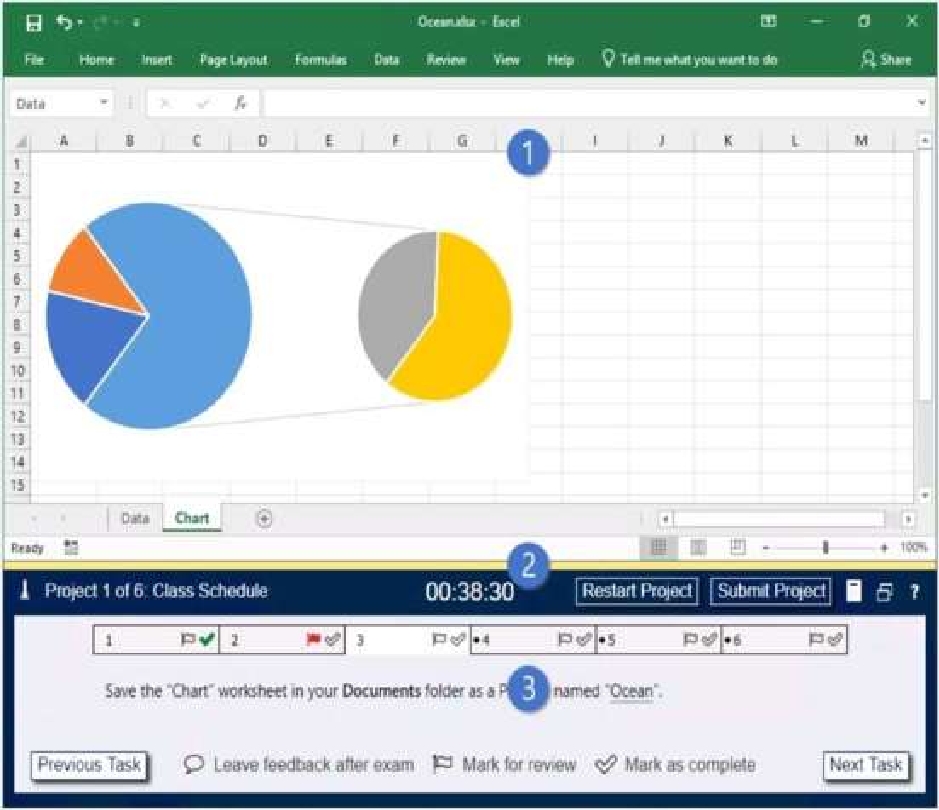
1. Project file
2. Split bar
3. Exam panel
You can modify the exam interface to fit your needs in the following ways:
To increase or decrease the exam panel font size, press Ctrl+Plus or Ctrl+Minus.
To change the height of the exam panel, drag the split bar between the project file and the exam
panel. • To minimize the exam panel, click the Collapse Panel arrow in the upper-left corner of

the exam panel. The minimized exam panel displays the Expand Panel button, the project number
and name, the remaining time, and the Restart Project and Submit Project buttons. To move
between tasks, you must
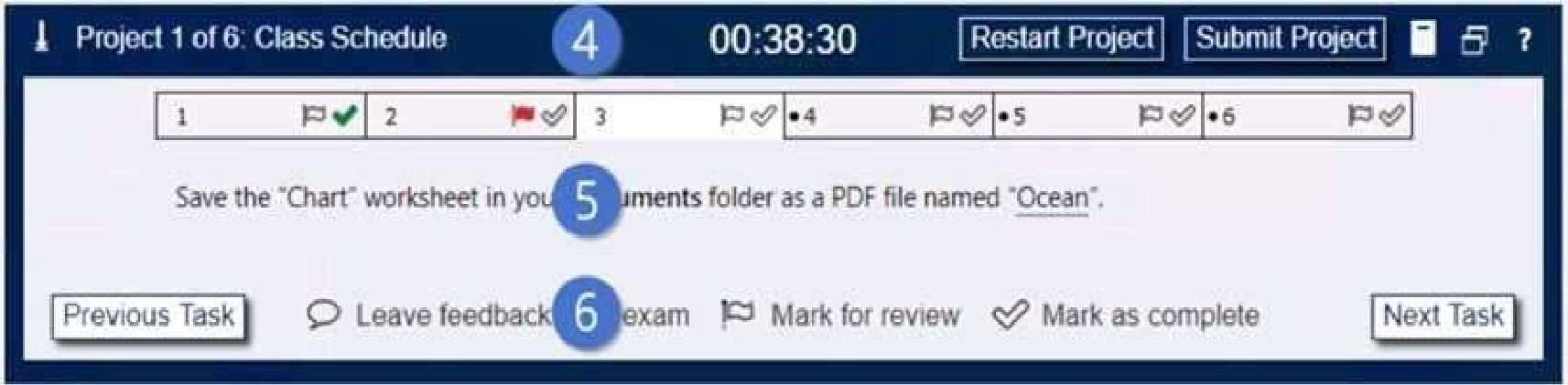
4. The Information bar at the top of the exam panel displays the current project and total number of
projects, the remaining exam time, and the following commands:
• Collapse Panel. Minimizes the exam panel to provide more space for the project file.
• Restart Project. Closes and reopens the current project file without saving your changes.
• Submit Project. Saves your changes, submits the project file, and moves to the next project.
• Calculator. A calculator is available in some exams. You are not required to use the calculator.
• Restore. Restores the size and position of the project file and exam panel to the defaults.
• Help. Displays information about the exam interface.
5. The Content area displays the task tabs and the current task description.
6. The Navigation area at the bottom of the exam panel contains the following commands.
• Previous Task/Next Task. Saves your response and moves to the previous or next task in the current
project.
• Leave feedback after exam. Flags the task to indicate that you want to leave feedback about it after
the exam.
• Mark for review. Flags the task to indicate that you want to return to it before you finish the exam.
• Mark as complete. Flags the task to indicate that you feel you have completed the task.
In projects that contain multiple tasks, you can switch between tasks by clicking the task tab, Next
Task button, or Previous Task button.
End of the instructions.
On the “2019 Visitors” worksheet, modify the conditional formatting rule to format rows for parks
that have a “Size” greater than 1,000 square miles.
Quiz
Instructions
Exam Environment
Exam Interface and Controls
The exam panel provides access to the project task(s). Each project has an associated file in which
you will perform the project tasks.
1. Project file
2. Split bar
3. Exam panel
You can modify the exam interface to fit your needs in the following ways:
To increase or decrease the exam panel font size, press Ctrl+Plus or Ctrl+Minus.
To change the height of the exam panel, drag the split bar between the project file and the exam
panel.
To minimize the exam panel, click the Collapse Panel arrow in the upper-left corner of the

exam panel. The minimized exam panel displays the Expand Panel button, the project number and
name, the remaining time, and the Restart Project and Submit Project buttons. To move between
tasks, you must • expand the exam panel.
To restore the interface to the default appearance, click the Restore button near the upper-right
corner of the exam panel.
4. The Information bar at the top of the exam panel displays the current project and total number of
projects, the remaining exam time, and the following commands:
• Collapse Panel. Minimizes the exam panel to provide more space for the project file.
• Restart Project. Closes and reopens the current project file without saving your changes.
• Submit Project. Saves your changes, submits the project file, and moves to the next project.
• Calculator. A calculator is available in some exams. You are not required to use the calculator.
• Restore. Restores the size and position of the project file and exam panel to the defaults.
• Help. Displays information about the exam interface.
5. The Content area displays the task tabs and the current task description.
6. The Navigation area at the bottom of the exam panel contains the following commands.
• Previous Task/Next Task. Saves your response and moves to the previous or next task in the current
project.
• Leave feedback after exam. Flags the task to indicate that you want to leave feedback about it after
the exam.
• Mark for review. Flags the task to indicate that you want to return to it before you finish the exam.
• Mark as complete. Flags the task to indicate that you feel you have completed the task.
In projects that contain multiple tasks, you can switch between tasks by clicking the task tab, Next
Task button, or Previous Task button.
End of the instructions.
On the “Summary” worksheet, starting in cell A4, consolidate data from the 2014-2018 “by Region”
worksheets. Display the average number of the “Recreation Visits” for each “Region”. Use labels in
both the top row and left column.
Delete the blank “Park Name” column from the consolidated data.
Quiz
Instructions
Exam Environment
Exam Interface and Controls
The exam panel provides access to the project task(s). Each project has an associated file in which
you will perform the project tasks.
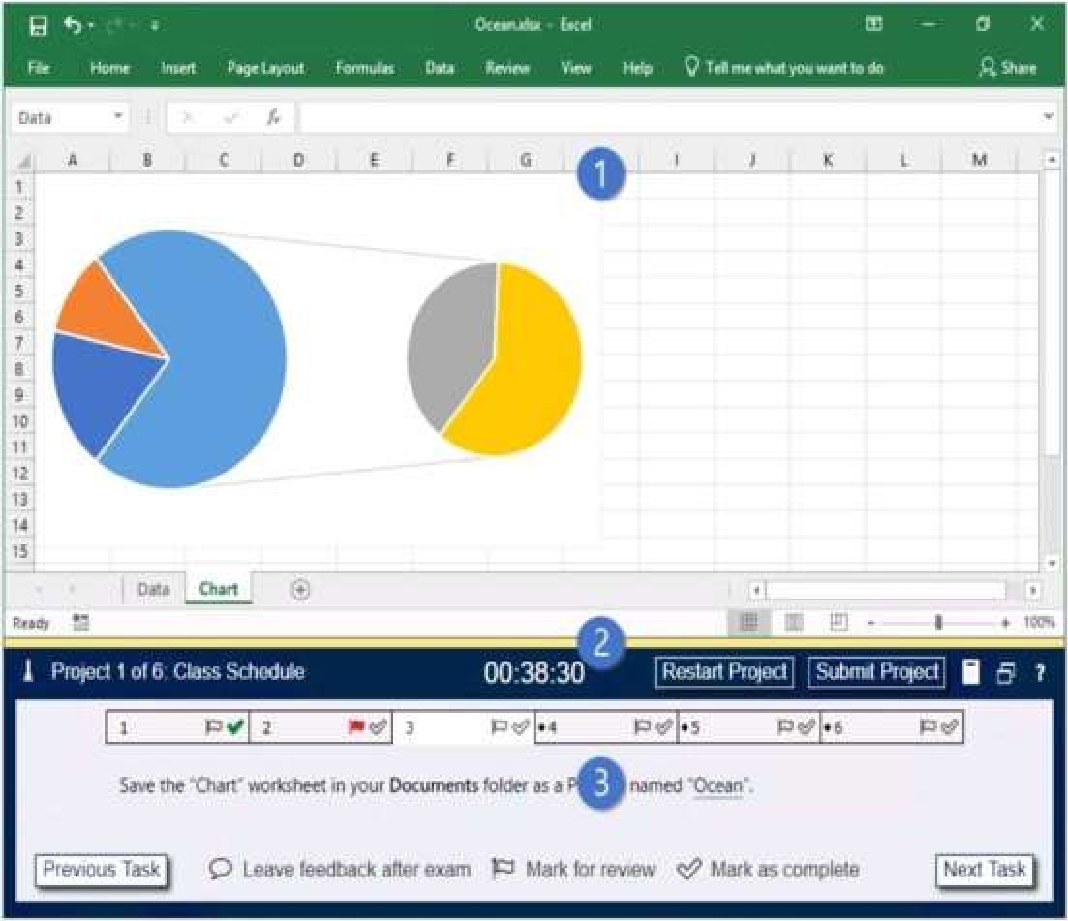
1. Project file
2. Split bar
3. Exam panel
You can modify the exam interface to fit your needs in the following ways:
• To increase or decrease the exam panel font size, press Ctrl+Plus or Ctrl+Minus.
• To change the height of the exam panel, drag the split bar between the project file and the exam
panel.
• To minimize the exam panel, click the Collapse Panel arrow in the upper-left corner of the

exam panel. The minimized exam panel displays the Expand Panel button, the project number and
name, the remaining time, and the Restart Project and Submit Project buttons. To move between
tasks, you must expand the exam panel.
• To restore the interface to the default appearance, click the Restore button near the upper-right
corner of the exam panel.
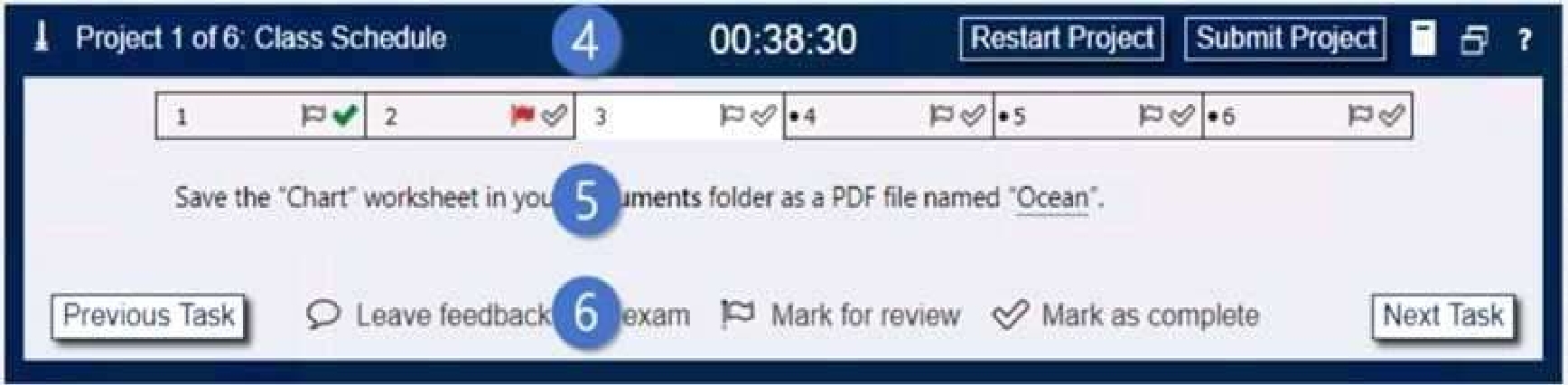
4. The Information bar at the top of the exam panel displays the current project and total number of
projects, the remaining exam time, and the following commands:
• Collapse Panel. Minimizes the exam panel to provide more space for the project file.
• Restart Project. Closes and reopens the current project file without saving your changes.
• Submit Project. Saves your changes, submits the project file, and moves to the next project.
• Calculator. A calculator is available in some exams. You are not required to use the calculator.
• Restore. Restores the size and position of the project file and exam panel to the defaults.
• Help. Displays information about the exam interface.
5. The Content area displays the task tabs and the current task description.
6. The Navigation area at the bottom of the exam panel contains the following commands.
• Previous Task/Next Task. Saves your response and moves to the previous or next task in the current
project.
• Leave feedback after exam. Flags the task to indicate that you want to leave feedback about it after
the exam.
• Mark for review. Flags the task to indicate that you want to return to it before you finish the exam.
• Mark as complete. Flags the task to indicate that you feel you have completed the task.
In projects that contain multiple tasks, you can switch between tasks by clicking the task tab, Next
Task button, or Previous Task button.
End of the instructions.
On the “Volunteer Analysis” chart sheet, drill down into the data to display the number of volunteer
hours for each month.
Quiz
Instructions
Exam Environment
Exam Interface and Controls
The exam panel provides access to the project task(s). Each project has an associated file in which
you will perform the project tasks.
1. Project file
2. Split bar
3. Exam panel
You can modify the exam interface to fit your needs in the following ways:
• To increase or decrease the exam panel font size, press Ctrl+Plus or Ctrl+Minus.
• To change the height of the exam panel, drag the split bar between the project file and the exam
panel.
• To minimize the exam panel, click the Collapse Panel arrow in the upper-left corner of the

exam panel. The minimized exam panel displays the Expand Panel button, the project number and
name, the remaining time, and the Restart Project and Submit Project buttons. To move between
tasks, you must expand the exam panel.
• To restore the interface to the default appearance, click the Restore button near the upper-right
corner of the exam panel.
4. The Information bar at the top of the exam panel displays the current project and total number of
Reference: projects, the remaining exam time, and the following commands:
• Collapse Panel. Minimizes the exam panel to provide more space for the project file.
• Restart Project. Closes and reopens the current project file without saving your changes.
• Submit Project. Saves your changes, submits the project file, and moves to the next project.
• Calculator. A calculator is available in some exams. You are not required to use the calculator.
• Restore. Restores the size and position of the project file and exam panel to the defaults.
• Help. Displays information about the exam interface.
5. The Content area displays the task tabs and the current task description.
6. The Navigation area at the bottom of the exam panel contains the following commands.
• Previous Task/Next Task. Saves your response and moves to the previous or next task in the current
project.
• Leave feedback after exam. Flags the task to indicate that you want to leave feedback about it after
the exam.
• Mark for review. Flags the task to indicate that you want to return to it before you finish the exam.
• Mark as complete. Flags the task to indicate that you feel you have completed the task.
In projects that contain multiple tasks, you can switch between tasks by clicking the task tab, Next
Task button, or Previous Task button.
End of the instructions.
You are creating a workbook for the regional meeting of Southridge Video.
On the “Regional Sales” worksheet, in cells D4:F7, use the Fill Series feature to complete the sales
projections using a linear growth rate of 500,000 per year.
Quiz
Instructions
Exam Environment
Exam Interface and Controls
The exam panel provides access to the project task(s). Each project has an associated file in which
you will perform the project tasks.
1. Project file
2. Split bar
3. Exam panel
You can modify the exam interface to fit your needs in the following ways:
• To increase or decrease the exam panel font size, press Ctrl+Plus or Ctrl+Minus.
• To change the height of the exam panel, drag the split bar between the project file and the exam
panel.
• To minimize the exam panel, click the Collapse Panel arrow in the upper-left corner of the

exam panel. The minimized exam panel displays the Expand Panel button, the project number and
name, the remaining time, and the Restart Project and Submit Project buttons. To move between
tasks, you must expand the exam panel.
• To restore the interface to the default appearance, click the Restore button near the upper-right
corner of the exam panel.
4. The Information bar at the top of the exam panel displays the current project and total number of
projects, the remaining exam time, and the following commands:
• Collapse Panel. Minimizes the exam panel to provide more space for the project file.
• Restart Project. Closes and reopens the current project file without saving your changes.
• Submit Project. Saves your changes, submits the project file, and moves to the next project.
• Calculator. A calculator is available in some exams. You are not required to use the calculator.
• Restore. Restores the size and position of the project file and exam panel to the defaults.
• Help. Displays information about the exam interface.
5. The Content area displays the task tabs and the current task description.
6. The Navigation area at the bottom of the exam panel contains the following commands.
• Previous Task/Next Task. Saves your response and moves to the previous or next task in the current
project.
• Leave feedback after exam. Flags the task to indicate that you want to leave feedback about it after
the exam.
• Mark for review. Flags the task to indicate that you want to return to it before you finish the exam.
• Mark as complete. Flags the task to indicate that you feel you have completed the task.
In projects that contain multiple tasks, you can switch between tasks by clicking the task tab, Next
Task button, or Previous Task button.
End of the instructions.
On the “Employees” worksheet, in cell C4, enter a formula that returns the office phone number
from the “Contact_Information” cell range using an exact match for the “Region” in column B.
Quiz
Instructions
Exam Environment
Exam Interface and Controls
The exam panel provides access to the project task(s). Each project has an associated file in which
you will perform the project tasks.
1. Project file
2. Split bar
3. Exam panel
You can modify the exam interface to fit your needs in the following ways:
• To increase or decrease the exam panel font size, press Ctrl+Plus or Ctrl+Minus.
• To change the height of the exam panel, drag the split bar between the project file and the exam
panel.
• To minimize the exam panel, click the Collapse Panel arrow in the upper-left corner of the exam
panel. The minimized exam panel displays the Expand Panel button, the project number and name,
the remaining time, and the Restart Project and Submit Project buttons. To move between tasks, you
must expand the exam panel.
• To restore the interface to the default appearance, click the Restore button near the upper-right
corner of the exam panel.
4. The Information bar at the top of the exam panel displays the current project and total number of
projects, the remaining exam time, and the following commands:
• Collapse Panel. Minimizes the exam panel to provide more space for the project file.
• Restart Project. Closes and reopens the current project file without saving your changes.
• Submit Project. Saves your changes, submits the project file, and moves to the next project.
• Calculator. A calculator is available in some exams. You are not required to use the calculator.
• Restore. Restores the size and position of the project file and exam panel to the defaults.
• Help. Displays information about the exam interface.
5. The Content area displays the task tabs and the current task description.
6. The Navigation area at the bottom of the exam panel contains the following commands.
• Previous Task/Next Task. Saves your response and moves to the previous or next task in the current
project.
• Leave feedback after exam. Flags the task to indicate that you want to leave feedback about it after
the exam.
• Mark for review. Flags the task to indicate that you want to return to it before you finish the exam.
• Mark as complete. Flags the task to indicate that you feel you have completed the task.
In projects that contain multiple tasks, you can switch between tasks by clicking the task tab, Next
Task button, or Previous Task button.
End of the instructions.
From the “Employees” worksheet, create a macro named “Header”. Store the macro in the current
workbook. Configure the macro to insert the “Sheet Name” in the left header cell of the active page
and the “Page Number” in the right header cell.
Quiz
Instructions
Exam Environment
Exam Interface and Controls
The exam panel provides access to the project task(s). Each project has an associated file in which
you will perform the project tasks.
1. Project file
2. Split bar
3. Exam panel
You can modify the exam interface to fit your needs in the following ways:
• To increase or decrease the exam panel font size, press Ctrl+Plus or Ctrl+Minus.
• To change the height of the exam panel, drag the split bar between the project file and the exam
panel.
• To minimize the exam panel, click the Collapse Panel arrow in the upper-left corner of the

exam panel. The minimized exam panel displays the Expand Panel button, the project number and
name, the remaining time, and the Restart Project and Submit Project buttons. To move between
tasks, you must expand the exam panel.
• To restore the interface to the default appearance, click the Restore button near the upper-right
corner of the exam panel.
4. The Information bar at the top of the exam panel displays the current project and total number of
projects, the remaining exam time, and the following commands:
• Collapse Panel. Minimizes the exam panel to provide more space for the project file.
• Restart Project. Closes and reopens the current project file without saving your changes.
• Submit Project. Saves your changes, submits the project file, and moves to the next project.
• Calculator. A calculator is available in some exams. You are not required to use the calculator.
• Restore. Restores the size and position of the project file and exam panel to the defaults.
• Help. Displays information about the exam interface.
5. The Content area displays the task tabs and the current task description.
6. The Navigation area at the bottom of the exam panel contains the following commands.
• Previous Task/Next Task. Saves your response and moves to the previous or next task in the current
project.
• Leave feedback after exam. Flags the task to indicate that you want to leave feedback about it after
the exam.
• Mark for review. Flags the task to indicate that you want to return to it before you finish the exam.
• Mark as complete. Flags the task to indicate that you feel you have completed the task.
In projects that contain multiple tasks, you can switch between tasks by clicking the task tab, Next
Task button, or Previous Task button.
End of the instructions.
On the “Plan Analysis” worksheet, modify the PivotTable to group the data by the values in the “Full
Package Price” column. Group the values in steps of 100 beginning at 0 and ending at 200.
Quiz
Instructions
Exam Environment
Exam Interface and Controls
The exam panel provides access to the project task(s). Each project has an associated file in which
you will perform the project tasks.
1. Project file
2. Split bar
3. Exam panel
You can modify the exam interface to fit your needs in the following ways:
• To increase or decrease the exam panel font size, press Ctrl+Plus or Ctrl+Minus.
• To change the height of the exam panel, drag the split bar between the project file and the exam
panel.
• To minimize the exam panel, click the Collapse Panel arrow in the upper-left corner of the

exam panel. The minimized exam panel displays the Expand Panel button, the project number and
name, the remaining time, and the Restart Project and Submit Project buttons. To move between
tasks, you must expand the exam panel.
• To restore the interface to the default appearance, click the Restore button near the upper-right
corner of the exam panel.
4. The Information bar at the top of the exam panel displays the current project and total number of
projects, the remaining exam time, and the following commands:
• Collapse Panel. Minimizes the exam panel to provide more space for the project file.
• Restart Project. Closes and reopens the current project file without saving your changes.
• Submit Project. Saves your changes, submits the project file, and moves to the next project.
• Calculator. A calculator is available in some exams. You are not required to use the calculator.
• Restore. Restores the size and position of the project file and exam panel to the defaults.
• Help. Displays information about the exam interface.
5. The Content area displays the task tabs and the current task description.
6. The Navigation area at the bottom of the exam panel contains the following commands.
• Previous Task/Next Task. Saves your response and moves to the previous or next task in the current
project.
• Leave feedback after exam. Flags the task to indicate that you want to leave feedback about it after
the exam.
• Mark for review. Flags the task to indicate that you want to return to it before you finish the exam.
• Mark as complete. Flags the task to indicate that you feel you have completed the task.
In projects that contain multiple tasks, you can switch between tasks by clicking the task tab, Next
Task button, or Previous Task button.
End of the instructions.
On the “Popular Videos” worksheet, for cells B4:C17, create a conditional formatting rule that
displays the five lowest values in bold Dark Red font.
Quiz
Instructions
Exam Environment
Exam Interface and Controls
The exam panel provides access to the project task(s). Each project has an associated file in which
you will perform the project tasks.
1. Project file
2. Split bar
3. Exam panel
You can modify the exam interface to fit your needs in the following ways:
• To increase or decrease the exam panel font size, press Ctrl+Plus or Ctrl+Minus.
• To change the height of the exam panel, drag the split bar between the project file and the exam
panel.
• To minimize the exam panel, click the Collapse Panel arrow in the upper-left corner of the

exam panel. The minimized exam panel displays the Expand Panel button, the project number and
name, the remaining time, and the Restart Project and Submit Project buttons. To move between
tasks, you must expand the exam panel.
• To restore the interface to the default appearance, click the Restore button near the upper-right
corner of the exam panel.
4. The Information bar at the top of the exam panel displays the current project and total number of
projects, the remaining exam time, and the following commands:
• Collapse Panel. Minimizes the exam panel to provide more space for the project file.
• Restart Project. Closes and reopens the current project file without saving your changes.
• Submit Project. Saves your changes, submits the project file, and moves to the next project.
• Calculator. A calculator is available in some exams. You are not required to use the calculator.
• Restore. Restores the size and position of the project file and exam panel to the defaults.
• Help. Displays information about the exam interface.
5. The Content area displays the task tabs and the current task description.
6. The Navigation area at the bottom of the exam panel contains the following commands.
• Previous Task/Next Task. Saves your response and moves to the previous or next task in the current
project.
• Leave feedback after exam. Flags the task to indicate that you want to leave feedback about it after
the exam.
• Mark for review. Flags the task to indicate that you want to return to it before you finish the exam.
• Mark as complete. Flags the task to indicate that you feel you have completed the task.
In projects that contain multiple tasks, you can switch between tasks by clicking the task tab, Next
Task button, or Previous Task button.
End of the instructions.
You work for Lucerne Publishing. You are compiling sales and royalty data for authors the company
represents.
Configure Excel to disable all macros in the workbook without notification.
MO-201: Microsoft Excel Expert (Excel and Excel 2019) Practice test unlocks all online simulator questions
Thank you for choosing the free version of the MO-201: Microsoft Excel Expert (Excel and Excel 2019) practice test! Further deepen your knowledge on Microsoft Simulator; by unlocking the full version of our MO-201: Microsoft Excel Expert (Excel and Excel 2019) Simulator you will be able to take tests with over 24 constantly updated questions and easily pass your exam. 98% of people pass the exam in the first attempt after preparing with our 24 questions.
BUY NOWWhat to expect from our MO-201: Microsoft Excel Expert (Excel and Excel 2019) practice tests and how to prepare for any exam?
The MO-201: Microsoft Excel Expert (Excel and Excel 2019) Simulator Practice Tests are part of the Microsoft Database and are the best way to prepare for any MO-201: Microsoft Excel Expert (Excel and Excel 2019) exam. The MO-201: Microsoft Excel Expert (Excel and Excel 2019) practice tests consist of 24 questions and are written by experts to help you and prepare you to pass the exam on the first attempt. The MO-201: Microsoft Excel Expert (Excel and Excel 2019) database includes questions from previous and other exams, which means you will be able to practice simulating past and future questions. Preparation with MO-201: Microsoft Excel Expert (Excel and Excel 2019) Simulator will also give you an idea of the time it will take to complete each section of the MO-201: Microsoft Excel Expert (Excel and Excel 2019) practice test . It is important to note that the MO-201: Microsoft Excel Expert (Excel and Excel 2019) Simulator does not replace the classic MO-201: Microsoft Excel Expert (Excel and Excel 2019) study guides; however, the Simulator provides valuable insights into what to expect and how much work needs to be done to prepare for the MO-201: Microsoft Excel Expert (Excel and Excel 2019) exam.
BUY NOWMO-201: Microsoft Excel Expert (Excel and Excel 2019) Practice test therefore represents an excellent tool to prepare for the actual exam together with our Microsoft practice test . Our MO-201: Microsoft Excel Expert (Excel and Excel 2019) Simulator will help you assess your level of preparation and understand your strengths and weaknesses. Below you can read all the quizzes you will find in our MO-201: Microsoft Excel Expert (Excel and Excel 2019) Simulator and how our unique MO-201: Microsoft Excel Expert (Excel and Excel 2019) Database made up of real questions:
Info quiz:
- Quiz name:MO-201: Microsoft Excel Expert (Excel and Excel 2019)
- Total number of questions:24
- Number of questions for the test:50
- Pass score:80%
You can prepare for the MO-201: Microsoft Excel Expert (Excel and Excel 2019) exams with our mobile app. It is very easy to use and even works offline in case of network failure, with all the functions you need to study and practice with our MO-201: Microsoft Excel Expert (Excel and Excel 2019) Simulator.
Use our Mobile App, available for both Android and iOS devices, with our MO-201: Microsoft Excel Expert (Excel and Excel 2019) Simulator . You can use it anywhere and always remember that our mobile app is free and available on all stores.
Our Mobile App contains all MO-201: Microsoft Excel Expert (Excel and Excel 2019) practice tests which consist of 24 questions and also provide study material to pass the final MO-201: Microsoft Excel Expert (Excel and Excel 2019) exam with guaranteed success. Our MO-201: Microsoft Excel Expert (Excel and Excel 2019) database contain hundreds of questions and Microsoft Tests related to MO-201: Microsoft Excel Expert (Excel and Excel 2019) Exam. This way you can practice anywhere you want, even offline without the internet.
BUY NOW